LinkedIn Chrome extensions for sales: three kinds, three different jobs
Most comparisons put every LinkedIn extension in one list and grade features. They are not the same product. Pick the job first, then the tool.
A contact finder asks its database for an address. A CRM sidebar checks the person against HubSpot or Salesforce. A research companion can keep the profile URL in your browser until you decide what to do with it. All three appear beside LinkedIn, but they handle different data and charge for different things. That is a more useful starting point than a single feature ranking.
So start with the job. What do you do on LinkedIn all day? If the answer is jumping from profile to profile, reading, deciding who is worth a conversation and coming back to them later, you need something different from the rep who wants a mobile number on every profile.
Kind one: contact-data extensions
Kaspr, Lusha and Apollo's extension belong here. You open a profile and the panel offers contact details from the provider's service. Availability and charging rules vary by provider and plan. Kaspr's pricing page, checked October 21, 2026, lists 15 B2B email credits a month on Free and a Starter plan at $49 to $65 per user and month, depending on the billing term. The extension is the window; the contact lookup is the service behind it. Check each provider's current product details and privacy notice before using it with your team's data.
If your job is “I need to call these people today”, this kind is the right one. A phone number does not come from browsing.
Kind two: CRM extensions
HubLead and Surfe sit here. They put your CRM next to the profile: is the person in HubSpot or Salesforce, add them, log the conversation, start a sequence. As of October 2026 HubLead's free Starter plan shows CRM information on a profile, while creating contacts and logging messages start with Professional at $40 per seat and month. Surfe's free plan offers limited CRM adds; its pricing page shows Essential from $49 per user and month. Surfe also offers email and phone lookup, so the categories overlap.
If your job is keeping a CRM in step with the conversations your team has on LinkedIn, this kind is built for it, and a seat price is fair for what it does.
Kind three: the research companion
This is where the free ListPlus extension for Chrome belongs. It is built for the person who browses: you open a profile, then the company page, then a colleague's profile, a conference speaker list, a portfolio page of an investor. The extension keeps a saved list of the people and companies you looked at, with a note on why they matter, sorted by day and into folders. When you are done, you hand the selection on: to a CSV, to your own webhook in n8n, Make or Zapier, or to a ListPlus list.
It does not come with a database of its own, and it does not build one from your browsing. Your saved list stays in your Chrome profile; ListPlus stores none of it centrally. On LinkedIn the extension saves only the page's address and the name from the tab title by default; it does not read the page. If you want photo, position and company too, you choose Read page content under Detection yourself. The switch includes a reminder to check LinkedIn's User Agreement.
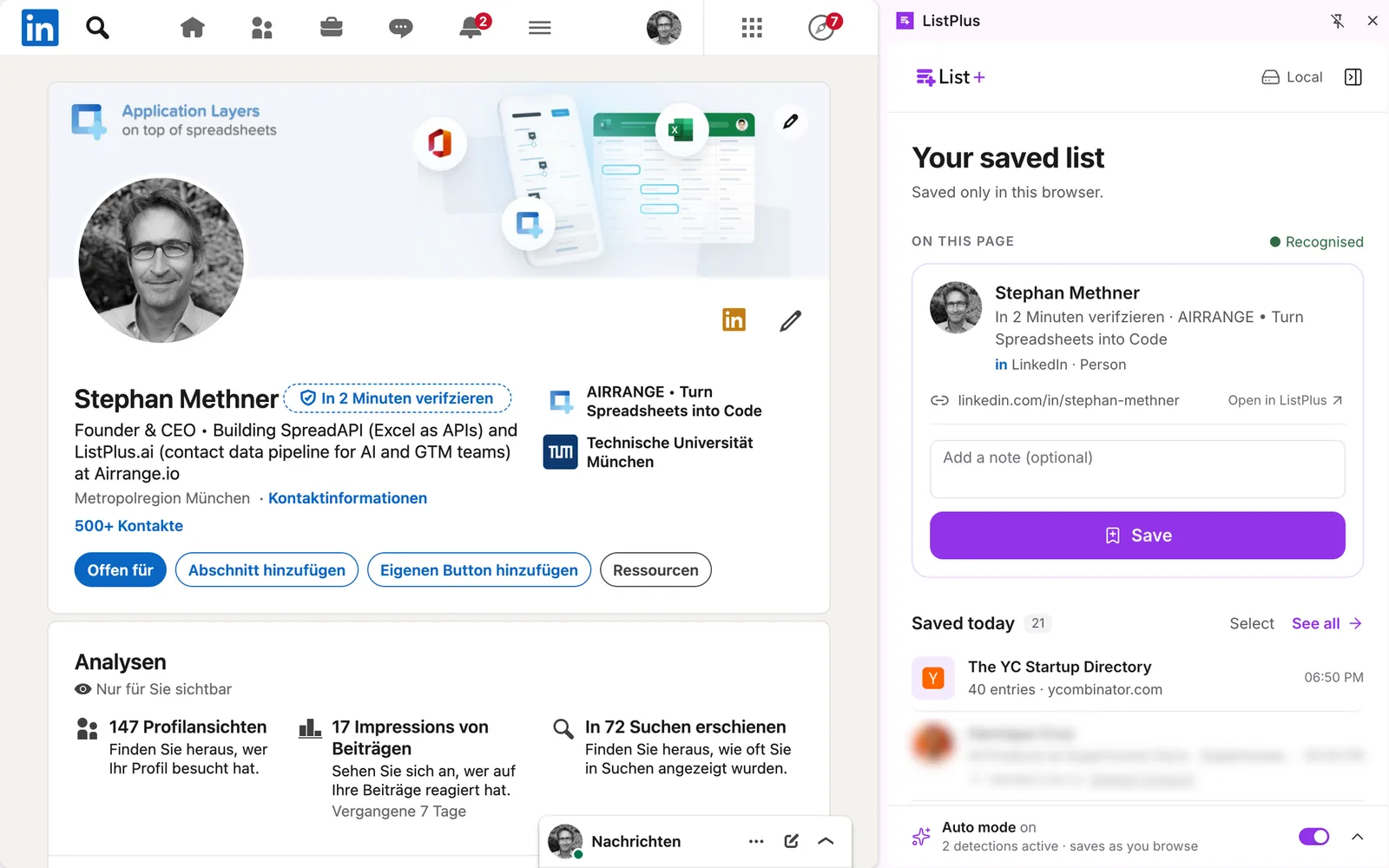
Two features cover the overlap with the other kinds, both optional. With HubSpot connected, the card shows whether the person is already a contact and lets you create or link them; that goes from your browser to HubSpot directly, free, no ListPlus account needed. And when you are logged in to ListPlus, an Enrich button finds a verified email for that one profile, 2 credits and only on a hit. That click, and a hand-over to a ListPlus list, are the only times anything reaches ListPlus. If all you want is a phone number on every profile, a contact-data tool does that better. That is a different job.
Questions that tell the kinds apart
- What does it charge for: data (credits), seats (CRM features) or nothing?
- Where does the answer on the card come from: the vendor's database, your CRM, or what you saved yourself?
- Which sites does it ask for at install: linkedin.com, or all websites? Chrome shows it; the store page lists the developer's privacy practices.
- What does it keep from a profile by default, and can you switch the reading off?
- When does data leave your browser, and does each time need a click from you?
The tools can also work together. Choose each one for the task it handles, and check how much data and cost that adds to your workflow.