Using Google Sheets as a CRM? How to keep the sheet clean, enriched and in sync (and when to hand it to HubSpot)
A sheet is a fine CRM for a small team until duplicates, dead addresses and empty columns take over. Here is a round trip that fixes the rows and writes them back without touching your formulas.
A shared Google Sheet can work as a contact list until the data stops being trustworthy. The same person appears twice under different spellings, old addresses remain after a bounce, and leads from the website form arrive without a company. A new CRM does not fix those rows by itself.
The usual advice at that point is a template or a switch to a CRM. There is a middle way: keep the sheet as the system of record and run the rows through something that checks, fills and writes them back. ListPlus does this round trip with a Google Sheet, on the Pro plan.
Connect the sheet
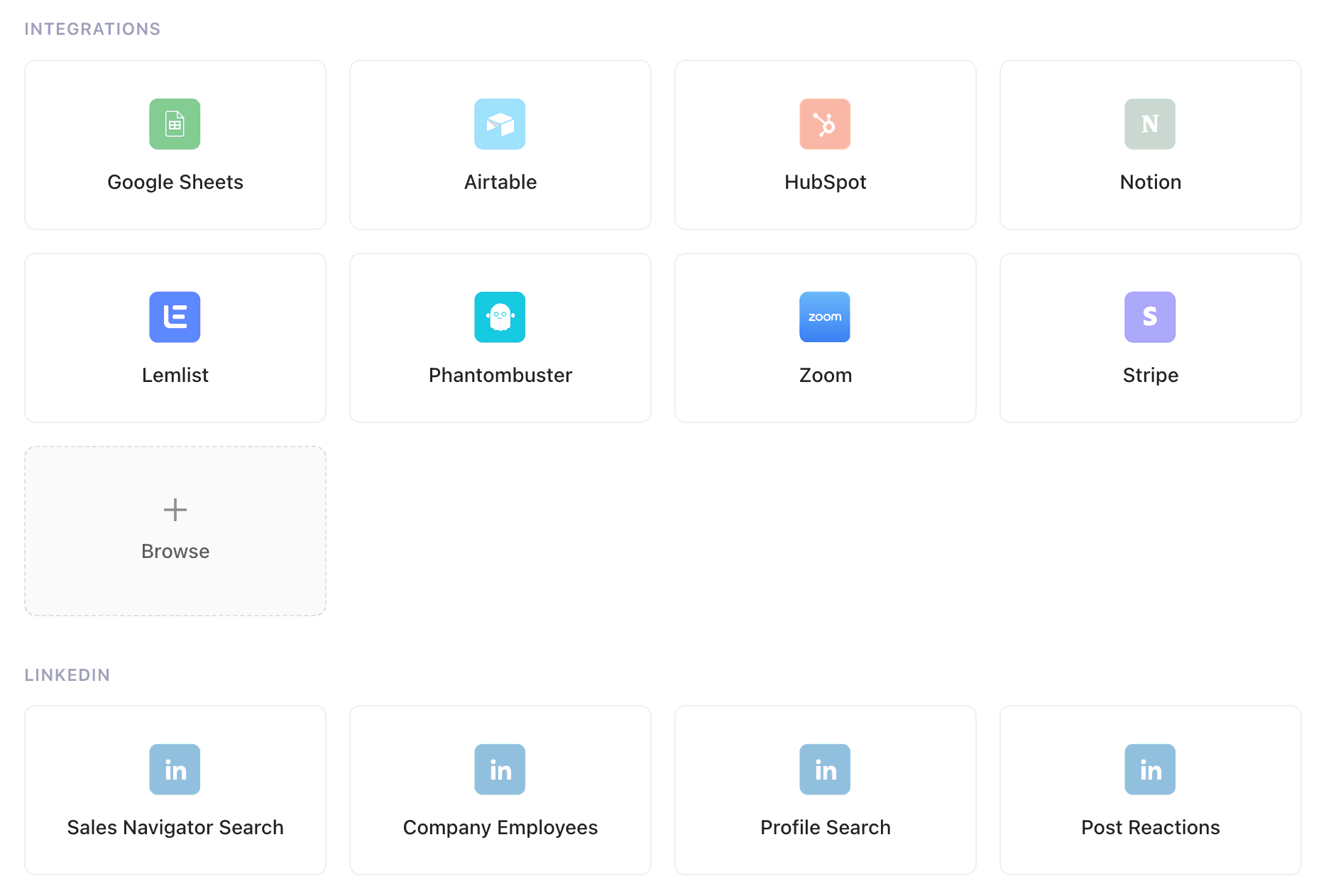
On the New List page, “Connect a system” shows a Google Sheets tile. It opens Google's own sign-in; you approve access there, pick the spreadsheet and the sheet, and see a preview before anything is read. ListPlus never stores your Google credentials. Reading the rows costs 1 credit per request to Google; the preview is not charged.
The result is a list that knows what its columns are. On import every column gets a content type: “Mail2” becomes a work email, “Firma” a company name, a column of linkedin.com links a LinkedIn profile URL. No mapping step. The type decides which checks run and which enrichment routes are offered.
Check what you have
Open “Analyze” in the list header. More than 100 checks run for free: invalid formats, role-based addresses like info@, disposable and test domains, personal domains, typos in domains, duplicates by email, phone, LinkedIn URL or name plus company, missing job titles and inconsistent country names. Each check lists how many rows it affects; click through and the grid shows them with the cells highlighted.
For the problems with a safe automatic fix, “Tidy up” walks through them in groups: brackets taken out of names, “first.last” split into two fields, capitalisation, legal forms, email typos. Every group shows examples from your own rows, you accept or skip, and one approval at the end writes the changes, undoable. An evaluation such as Cold Email or CRM Quality then rates every row ready, enrichable or unusable for data quality; it does not decide whether you may contact someone.
Fill the gaps that matter
Select the rows with an empty company or a missing email, click “Enrich” and pick the fields. The dialog shows the route per group of rows (from the LinkedIn URL, the email, or name and company) and one figure: at most N credits for the whole job. That is a ceiling, not a price. Most lookups charge only on a hit, a row with nothing to search from is skipped, and the job never passes the figure you accepted. A company by domain costs 0.25 credits, a verified email 2, nothing when none is found. Values you typed yourself are never overwritten.
Write it back, without breaking the sheet
After you edit or enrich, the status bar reads “N open changes | Sync”. The first time, click “Choose key column”, pick the column that identifies a row in the sheet (an ID column or the email) and save. “Write to Google Sheets” reads the sheet, compares and writes in one go. The rules are the same for every connected source:
- Only columns that came from the sheet go back. A column you added in ListPlus, an AI column or a score stays in ListPlus.
- The sheet wins a conflict. If a cell changed in the sheet since you edited it, nothing is written in that run; the panel names the rows and the list takes the sheet's value. “Write anyway” writes the rest.
- Values are written raw: “01234” keeps its zero, a value starting with = does not become a formula.
- A cell that holds a formula is never overwritten; that change stays open and says so.
- Rows sorted or inserted while the sync was writing are reported instead of counted as written.
- Sync updates existing rows only, never adds or deletes any. Only the workspace owner and admins can write back.
Cost: one write request per 500 rows plus the read requests needed for comparison, at 1 credit per request. Check the request count for your own sheet before you write back; it depends on the rows being synced.
What a sheet list cannot do
A Google Sheets list has no Reload button and no automatic refresh: between two runs ListPlus cannot reliably tell which sheet row is which record, so new rows from the sheet come in through a fresh import. Automatic refresh, daily or weekly, exists for sources with a stable record ID (HubSpot, Salesforce, Pipedrive, Airtable, Notion, Attio, Stripe). If a form feeds the sheet, let it post to a ListPlus list webhook instead; a pipeline can hand each record on to the sheet.
When to hand it to HubSpot
The sheet stops being the right system when several people need to see the activity on a contact, or a sequencer needs to know who replied. Two paths lead from ListPlus into HubSpot, both on Pro:
- A pipeline with the HubSpot target, for leads one at a time as they qualify. Each record is matched by email; new contacts are created, for existing ones you pick “Only fill empty fields” (the default), leave them, or overwrite. 2 credits per delivered record, nothing for one that fails. Every contact ListPlus creates carries a “ListPlus ID” property a HubSpot workflow can filter on.
- The export wizard for the whole list at once: “Export”, destination HubSpot, “Contacts Only” or a new or existing static list, field mapping suggested from the content types. Matched by email as well, charged per request.
Either way the sheet keeps working until the day you switch; nothing in the round trip above depends on HubSpot.