How to find someone's email from a LinkedIn profile
The four methods people actually use, what each costs per address, and why it matters whether you pay per seat, per month or only when something is found.
A LinkedIn profile may show a name, role and company while leaving out the work email you need. LinkedIn shows an address only when the person has entered one and made it visible to you. There are four ways to look further, with different costs when the search returns nothing.
What LinkedIn itself shows
Click Contact info under the headline: a first-degree connection may show an email, everyone else shows the profile URL and perhaps a website. LinkedIn has no email lookup and no API for other people's profiles; Sales Navigator does not change that.
Guess the pattern, then verify
Companies often use an address pattern: first.last@, flast@, sometimes first@. Find a known address at the company, apply the pattern, then verify, because a guess is a guess. A verifier asks the receiving mail server whether the mailbox exists without sending a message; in ListPlus that check costs 0.3 credits per clear answer. It cannot give a clear answer at catch-all domains, where the server says yes to every address (more below). Manual checks also become slow when you need a list rather than one address.
Finder tools and extensions: what you really pay for
Another route is a finder such as Hunter, GetProspect, Lusha, Surfe or HubLead, often available through a Chrome extension on the profile. Read the cost model carefully: the free allowance, monthly fee and definition of a billable result differ by vendor.
Prices as of October 21, 2026, from the vendors' pricing pages: GetProspect's Starter is $49 a month for 1,000 valid emails, 50 a month free. Hunter's Starter is $49 a month for 2,000 credits, one credit per email found. Surfe gives 20 emails a month free and charges $49 per user and month on Essential. HubLead's Professional seat is $40 a month, one credit per email.
A monthly plan is cheapest per address only when you use enough of its allowance. The fee still applies in quiet months, and unused credits may expire or roll over under the vendor's rules. Check those rules and what counts as a hit: a catch-all address billed as “found” is a credit spent on an uncertain result.
One click on the profile, paid only when something is found
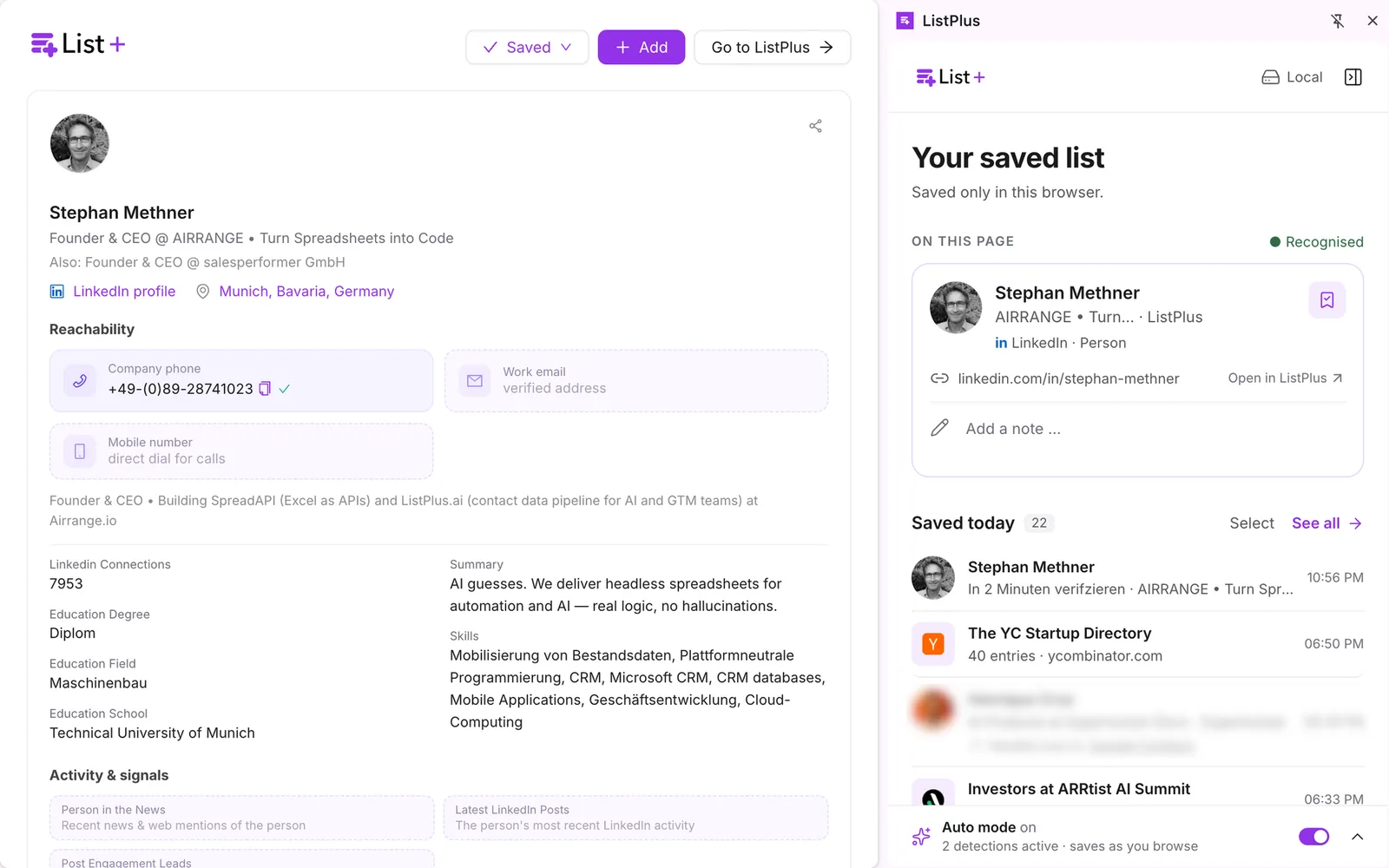
The fourth way is built into the free ListPlus extension for Chrome. When you are logged in to ListPlus (the free Basic plan is enough) and your balance covers the price, the card of a LinkedIn profile shows a button labelled Enrich with the price on it: 2 credits, which is $0.07 on Pro or Premium and $0.12 on Basic. ListPlus looks the profile up and the card shows the verified email first, then role, company and company details, whatever was found. If nothing verified comes back, the card says so and you are not charged. Enriching the same page again within seven days costs nothing.
Here the cost follows the result: 2 credits for a verified hit, nothing for a miss. There is no seat fee, and credits do not expire. Compare that per-hit cost with a monthly plan using your own lookup volume, including months when you barely use it.
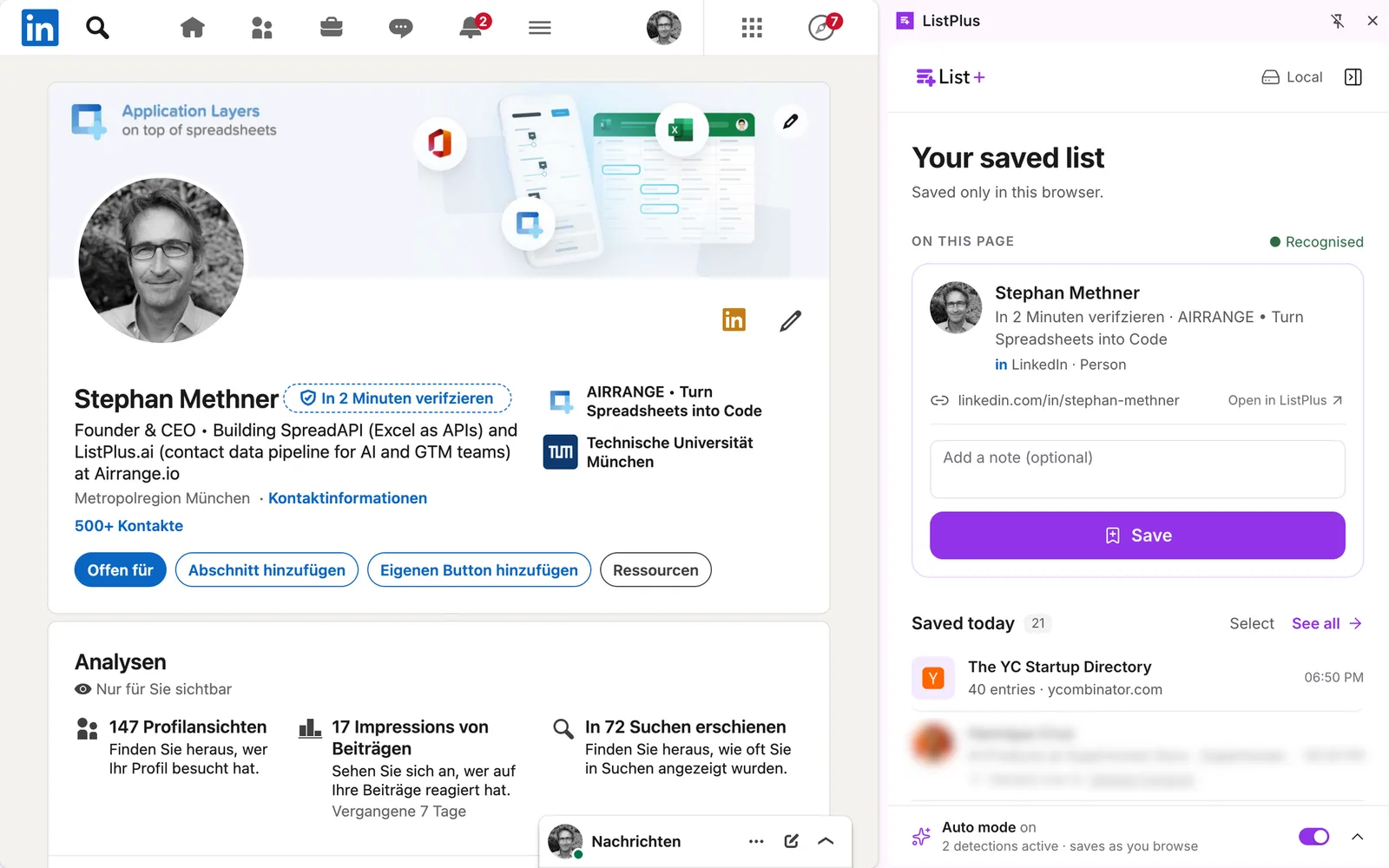
What Enrich found stays with the entry in your saved list and travels with it: into a CSV or Excel export, to your own endpoint (n8n, Make, Zapier or your server; email, job title and company fields go along in the JSON), or in a hand-over to a ListPlus list, where that list's rules and pipelines take over. Open in ListPlus shows the full profile; a mobile number, when one exists, is revealed there.
Search deeper when the first lookup misses
When Enrich found nothing and a company is known, from the entry, from what Enrich found or from a headline like “Head of Sales @ Acme”, the card offers Search deeper instead of a retry. It asks more than 20 data sources by name and company, can take up to three minutes and costs 6 credits ($0.21 on Pro or Premium, $0.36 on Basic), charged only when an email is found. Without a known company the card offers Try again instead. If the deep search finds nothing either, that is final, and free.
Verified, catch-all, unknown
“Verified” means the mail server confirmed that this mailbox exists. “Catch-all” means the server accepts mail for any address at the domain, so the confirmation is worth nothing; a sizeable share of B2B domains behaves like this, and our article on catch-all emails has the numbers. The ListPlus card shows an email only when it came back verified. Whatever tool you use, ask what it counts as a hit before you compare prices.
What leaves your browser, and the rules
The extension does not read the LinkedIn page. By default it stores only the page address and the name from the tab title; reading details such as headline and location is a switch you turn on yourself, with a reminder of LinkedIn's User Agreement next to it. Saving, notes, folders, export, the HubSpot check and your own endpoint work without a ListPlus account, and your saved list stays in the browser. Only the click on Enrich sends that one page's LinkedIn address to ListPlus (Search deeper also the name and company); the other way is a hand-over, your click too. A verified address says nothing about permission to email it. For advertising email in Germany, Section 7 UWG generally requires prior express consent, subject to the specific existing-customer exception.